Alight Motion claims to be the only app that provides everything you need to create professional and cinematic level of visuals and if you are looking for ways to reverse a video in AM Mod then you have finally landed at the right place because we will assist you to reverse a video in Alight Motion without facing any distortion as well as losing its quality.
You may have seen many videos that seemed too difficult or impossible to create and you would have challenged your video editing abilities and still failed to create similar visual effects, let me introduce you to the new video editing technique that is used by those unique videos that seem to be impossible to create and are highly engaging.
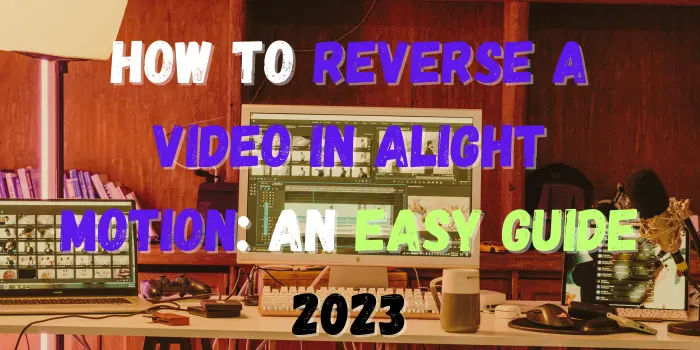
To reverse a video in Alight Motion you just have to record a video of a walking man conventionally and use the reversing technique of AM Mod to make that man appear to be walking backwards. Learning this technique could boost your editing skills and take your video editing career one step ahead, Alight Motion always makes sure that you are not missing out on any crucial feature, so like always Alight Motion allows its users to reverse a video and create visuals that could prove to be Cataclysmic for the competitors.
What is the Reverse Video Effect in Alight Motion?
The reverse video effect is a feature that allows your video to play backward from end to start. In simple words, whatever action happened last in your video will appear first after applying reverse effect. This effect is used to make content look unique, creative, and engaging.
For example, if you drop an object on the floor, after reversing, it will look like the object is jumping back into your hand. That is why many content creators use reverse effect for reels, shorts, and cinematic edits. In Alight Motion, this feature can be used easily with a few simple steps.
Requirements to Reverse a Video in Alight Motion
Before you start reversing any clip, make sure you have completed some basic requirements. This will help you avoid errors and get better output quality.
If your clip is very long and your phone is low-end, then the app may lag during reverse processing. So for smooth editing, start with shorter clips and then move to bigger projects.
Why Use Reverse Video Feature in Alight Motion?
Many users ask why we should reverse a video when normal playback is already available. The answer is simple: reverse effect makes ordinary videos look extraordinary. It helps your content stand out and gives a creative touch without using too many complex effects.
You can use reverse effect for:
That is why reverse video is not just an effect, it is a smart editing method to increase viewer interest.
Benefits to reverse a video in Alight Motion
There are limitless opportunities to create stunning and more engaging videos using the reverse technique in Alight Motion, using this feature efficiently allows you to create high-quality cinematic visuals on your smartphone and challenge giants who use costly cameras to do it. Let’s explore some of the benefits to reverse a video in Alight Motion.
Steps to reverse a video in Alight Motion
There are many benefits of the reverse functionality of Alight Motion and it is very easy to use this feature in Alight Motion due to its user-friendly interface but you must know how to download and use Alight Motion, then simply follow the steps below to reverse a video in Alight Motion:
Open Alight Motion and Create a New Project
Import the Video Clip
Trim and Customize the Clip
If your video has unnecessary parts, choose trimming tools and trim them first. Keep only the part you want to reverse.
Apply Reverse Effect
Preview the Reversed Clip
Export the Final Video
Now export the video in your preferred quality and format so you can share your Alight Motion Project with others. Your reversed clip is ready.

Tips to reverse a video in Alight Motion
It is very easy to reverse a video in Alight Motion but you must follow these tips to make your video standout others:

Common Issues and Troubleshooting
Sometimes users face problems while reversing clips, but most issues are common and fixable. Here are the most frequent issues and their solutions:
App Crashing While Reversing
This usually happens due to low RAM or heavy clip size. Close background apps and use a shorter clip.
Delay or Lag in Export
If export is taking too long, lower export resolution once and check processing speed.
Audio Out of Sync
After reversing, audio may sound odd or off-sync. In such cases, mute original audio and add a separate sound/music track.
Video Quality Loss
If output quality drops, export at higher bitrate and avoid multiple re-exports of same clip.
By fixing these issues, you can get clean and professional reverse edits.
Conclusion
Alight Motion is a blessing for new video editing specialists because it provides every latest and advanced feature to its users in an easy-to-use interface that makes it very easy to create stunning and high aesthetic visuals, effects, and videos in a short time frame. This guide is tailored in a way that it assists you to reverse a video in Alight Motion, if you still have any queries related to Alight Motion then feel free to contact us and we will be happy to provide a suitable solution to your problems.