Are you new to video editing and keep on hearing about masking and have you wondered how To Mask On AM Mod? Don’t worry, you are not alone. Masking is one of the advanced features of video editing and one of the most talked about topics recently.
I was also curious about masking and when I used this feature I was amazed by the endless opportunities that this feature brings. Have you seen movies or videos where a person does two different roles? Like in the “JUDWA” Movie, where the lead actor is playing two roles at the same time?
Have you ever wondered how that is possible? Well here comes the concept of Masking, they used the masking feature to show us two different layers at the same time.

They shoot two different scenes with the same actor and they mask those two clips into one video clip. In this article, I will guide you through each and every detail of Masking, from its introduction to tips to master it.
What is masking?
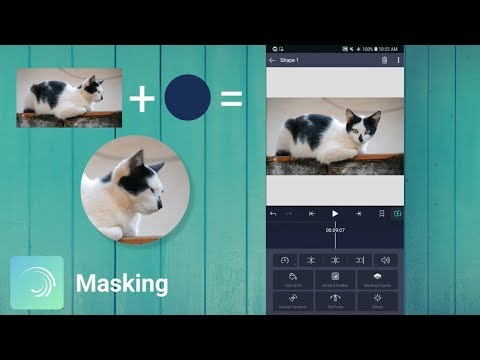
Masking is one of the advanced video editing techniques that gives you the liberty to hide, reveal, modify, or duplicate any part of your video or image with the help of a mask. The mask is a layer of your own choice acting as a barrier to hide or show certain parts according to your instructions.
The main concept behind masking is to create visually engaging content where you can add two or more layers and customize the foreground or background of your video. A mask could be an image, text animation, or a video on top of another video.
To avoid any kind of misunderstanding first get familiar with two concepts, “to be masked” and a “mask”, To be masked is the background layer and a mask will be anything that will be used to hide or modify that background layer.
Types of Masks in Alight Motion
To understand the concept of masking in detail we have to learn about the types of masking and their practicality, First, let’s talk about the type of Masking.
Shape Masks
It is the basic masking type where you use basic geometrical shapes like rectangles, circles, squares, etc. to act as a mask. You can adjust the size, shape, color, and similar aspects of the shape mask to achieve the desired results.
Alpha Masks
Alpha masks are also called soft masks based on Alpha Channels of elements like videos or images. They are used for separating fine elements like hair, fur, or smoke. These masks are more complex and irregular in shape and sometimes they could be drawn on alpha channels and then exported later on.
You can see the representation of Alpha masks in e-commerce stores or websites where products and catalogs are separated from the background with the help of Alpha masks.
Luma Masks
Luma words came from Luminance, as it uses brightness or luminance value to determine the masking visibility. Darker areas of the media and considered to be more transparent or you can say less visible (could be referred to as background) and brighter areas of the media and more visible (could be referred to as mask).
Explore the uses and functionality of QR Code in Alight Motion APK
Uses of Masking
The basic use of masking is to add text, images, or animations on the videos to create info-graphics. You could enhance your content by storytelling using text, adding branding elements, or creating context as well.
You can isolate certain elements of your content and add emphasis on another element, this could help you to increase engagement, luma masks could be used to isolate certain elements based on how brighter or darker those elements are.
You can add a mask in a specific part of the media, you can add color correction to a certain part of the media and you can add blur to another part of the same scene. You could add emphasis to certain parts of the scenes using this technique and control your audience’s attention.
How To Mask On Alight Motion: A Step-by-Step Guide
Now that we are familiar with the concept and types of masks, you might be thinking, “How do I actually do this on AM Mod?” Don’t worry, it is much easier than it sounds! When I first tried it, I thought I would need a PC or heavy software, but Alight Motion handles it perfectly. Let’s break it down into easy, bite-sized steps:
Add Media
Open Mask Tools
Next, you need to add your mask. Tap the plus icon again and add the shape, text, or PNG you want to act as your barrier. Once your second layer is on the timeline, select it, go to the Blending & Opacity menu, and look for the Mask option at the top.
Choose Mask Type
Once you tap on the Mask option, you will see different modes. This is where you tell AM Mod how you want the mask to behave. You can choose to “Mask” (keep what is inside the shape) or “Exclude” (hide what is inside the shape).
Draw the Initial Mask
Make sure your mask layer is placed exactly above the background layer on your timeline. Position your shape or text exactly over the area of the video you want to reveal or hide.
Adjust the Shape
Don’t panic if it doesn’t look perfect on the first try! Use your fingers to drag, scale, and rotate the mask. You can change the length and width of your shape to perfectly fit the subject you are trying to cover.
Feather the Edges (optional)
Have you ever noticed sharp, unnatural cutouts in bad edits? To avoid that, we use the “Feather” tool. Go to your shape’s edit menu and increase the feathering. This softens the edges of your mask, making it blend smoothly and naturally with the background.
Animate and Tweak
This is where the real magic happens! If the subject in your video is moving, your mask needs to move too. Use the Keyframe feature (the little diamond icon) to animate your mask so it follows the subject frame by frame. You have successfully masked these layers in the Alight Motion Mod APK, you can also share an Alight Motion Project with your friends and teams.
You can also get Alight Motion APK for iOS as well!
Video Tutorial to Add Mask in Alight Motion
Advanced Masking Techniques in Alight Motion
Once you get comfortable with the basics, you will realize that masking is not just for hiding things—it is a powerful tool for cinematic editing. Here are two advanced ways professionals use it:
Masks for Color Correction
Have you ever recorded a beautiful video, but the sky looked too dull, or your subject’s face was too dark? If you apply a color filter to the whole video, it might ruin the good parts. Well, here comes masking to the rescue! You can draw a mask just over the sky, and apply brightness and color correction only to that specific area. This gives you complete control over the lighting and colors in your scene without affecting the rest of the clip.
Masks for Special Effects
Remember the “JUDWA” movie example where one actor plays two roles? That is just the tip of the iceberg! With advanced masking, you can create mind-blowing special effects. You can make a person walk through a solid wall, create glowing eyes, or even make your subject clone themselves and interact with each other. By using Alpha and Luma masks, you can separate elements like fire or smoke and place them anywhere in your edit to create a Hollywood-level scene right on your phone!
Tips to get better at Masking
Tip 1:
When you are masking a high-quality project, the speed of your cursor usually gets slow, which can be irritating sometimes and affects the productivity of the project, let me give you a simple solution for this:
If you mistakenly masked outside of the screen then follow this procedure:
Tip 2:
If you can’t what you are masking because of the green color, you can simply deactivate the mask layer from the left side of the screen and after selecting the area to be masked you must activate the mask layer.
Tip 3:
Some people add a keyframe for each point separately, instead of doing this you can select the whole area and then click on add a keyframe. This way you don’t have to add it for each point separately.
Tip 4:
If you want to smooth your masking edges then add the Feather effect or Gaussian Blur Effect or you can also use the Mate Choker Effect to get smother edges.
These are some of the tips you can use to add quality to your work, You will get better by practicing and you could also bookmark this website to get quality information related to Alight Motion Mod APK.
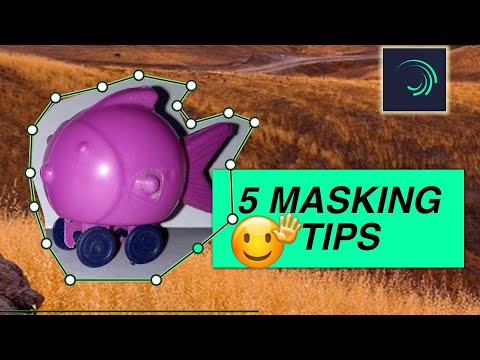
Learn to use Easing Keyframes to improve your motion smoothness, you can also explore the methods to remove watermark on Alight Motion APK
Possible difficulties and mistakes
I will be honest with you—when I first started using masks, I made a lot of silly mistakes and got frustrated. You are probably going to face a few hiccups too, but that is totally normal. Here are some common difficulties and how to fix them:
Conclusion
Masking is the best way to add user engagement to your content and it provides you a freedom to control the attention of your audience and direct them wherever you want.
Masking has changed the content industry and its advanced techniques are still creating wonders, Its practical uses have a lot of applications and you could consider Alight Motion APK as a starting point. If you want to learn more about Alight Motion and its advanced features then you should stay connected to this website or you should bookmark it.